
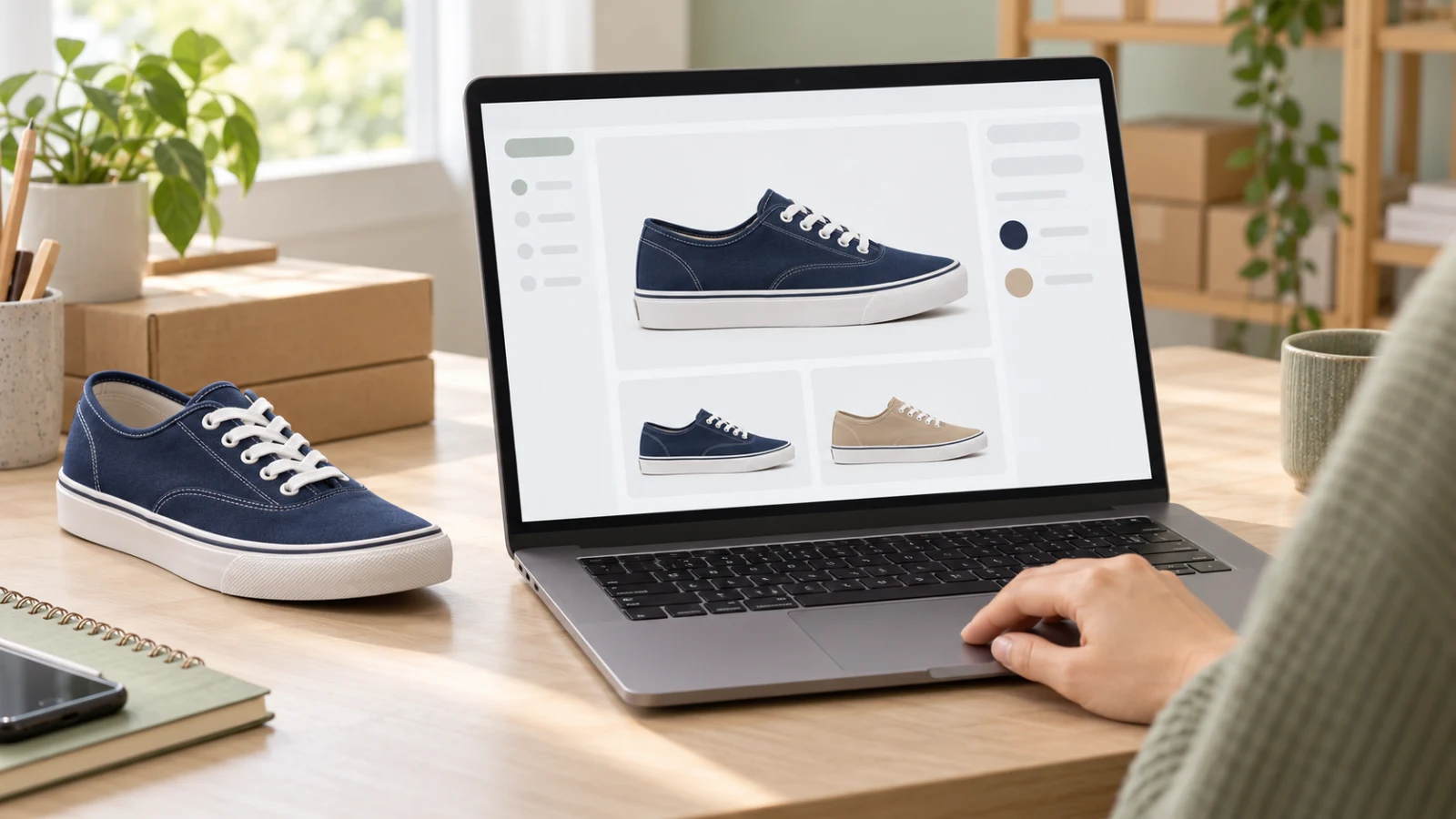
When you sell one model in several colors, you can organize the gallery around a shared foundation: framing, background and the purpose of each image. What must follow each option is the appearance of the product the customer will actually receive.
Imagine a casual sneaker offered in navy and beige. Separating the reference photos and images for each color helps create a consistent presentation and makes review easier. The aim is a clear choice, without turning two alternatives into a mismatched pair or a bundle.
Step 1: create a record for each variant
Record the internal code, the color name used in your store and the corresponding real photos. In this hypothetical example: Casual model, navy, size 38; Casual model, beige, size 38. These names organize the work; they do not describe a product sold by MyListing.
Check whether color is the only difference. Lining, soles, stitching, material and finish may also change between versions. A photo of the navy model does not establish what the beige one looks like. If references for the other version are missing, obtain them before creating an image to represent that offer.
Step 2: reuse the visual direction, review the whole product
Reuse a useful shot plan: a side view to identify the model, a finish detail and a lifestyle scene when it explains the product. Keep the camera, background and lighting consistent. Replace the references and product information that identify the variant.
Do not apply an overall color change without reviewing individual parts. A sneaker with a beige upper may still have white soles and laces; an indiscriminate edit can recolor everything. Compare the result with the real photo, including small areas. If the tool cannot preserve details, use a photograph of the actual variant or simplify the composition.
Step 3: connect the image to the right option
Google Merchant Center's variant image guidance calls for a dedicated image representing the selected version, with the corresponding color and finish; it also recommends showing one variant per image. This does not make a collage of all colors a suitable primary image for every channel. Read the official image guidance.
Merchant Center uses an item group identifier to connect variants while retaining a separate item identifier for each. Landing-page information needs to match the submitted option. This is specific to that service; check how your marketplace or store platform associates photos with variants. See the official variant guidance.
Step 4: follow the customer's path on mobile
Open the listing and select each color. Check whether the main image changes to the corresponding version and whether the thumbnails remain consistent. Also check the title, option name, availability and offer details. A correct image in the editor does not guarantee that it is linked to the right option in the store.
- Does the selected color match the main image?
- Do details preserve the real material, sole, stitching and finish?
- Does the scene show the selected version without mixing models?
- Do the images imply only the quantity included in the purchase?
- Is an old thumbnail from another variant still in the sequence?
Step 5: record what can be reused
Keep the approved shot plan and a list of images that need changing for each color. Use recognizable filenames such as casual-navy-side and casual-beige-side. Avoid replacing an approved image when preparing the next version; keep the sets separate until review is complete.
Use MyListing to organize the product, color, references and scene description for each brief. Generate the image in your chosen AI tool and compare it with the real item. A prompt does not guarantee exact color reproduction: lighting, displays and processing can affect perception. Do not treat a simulation as proof of a shade you have not verified.
If you submit AI-generated images to Google Merchant Center, also check its source-metadata requirement and preserve the embedded markings described in its documentation. An editorial cover like this one illustrates the seller's workflow; it does not replace a photo of an actual variant.
Organize your next gallery around each purchasing option. Explore MyListing plans.
Sources and transparency
Sources checked on October 26, 2026: Google Merchant Center: images and variants and item group identifier. The footwear example belongs to a category present in Mercado Livre's best-seller list; that presence does not establish demand for this fictional model or a sales volume. The organization and review steps are editorial suggestions, not universal platform policies.
Content and cover created with AI assistance by the MyListing team. The products and cover interface are illustrative. Check the actual item and current channel rules before publishing; approval and sales are not guaranteed.